Don’t like an Ubuntu application? Swap It out with one of these alternatives

Don’t like an Ubuntu application? Swap It out with one of these alternatives: "

The default selection of applications in Ubuntu are great for most people but it would be foolish to think that one size fits all. To make it easier for you BLAH showing the most popular alternative to a default application…. install-on!

This list is by no-means exhaustive or definitive but presents the best like-for-like replacements.

Swap Empathy for Pidgin

Pidgin and Empathy are very similar – for example they both use the libpurple library for communicating with various different IM services.

Although Empathy can do most of what Pidgin can do (and in some cases a little bit more) many users yearn for the familiarity and extensibility of Pidgin. Swapping it out is painless as Pidgin uses the Messaging Menu and integrates well into the desktop. image

Swap PiTiVi for OpenShot

When PiTiVi was announced as a default application for Ubuntu 10.04 many users were happy that a stable and usable video editor was finally included by default.

Some users find that PiTiVi is too basic for their needs and want something with features like iMovie and entry-level video software for Windows. OpenShot provides just that.

Features, effects, easy

OpenShot boasts a massive line-up of features, video effects and editing tools – and it’s all in an interface that is very easy to use straight away.
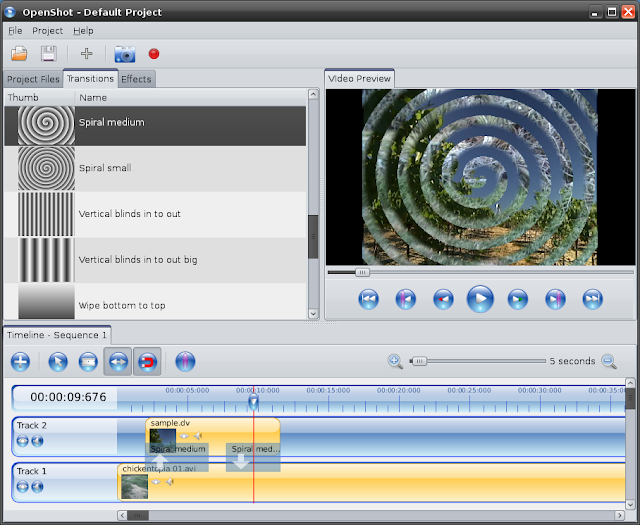
Features include: -

  • Over 30 video effects, 28 transitions and 10 audio effects
  • Green-screen/Chrome Key support
  • Title editor
  • Dynamic Tiling
  • Simple export presets

To install it hit the one-click install button below: -image[3]

Swap F-Spot with Shotwell

Shotwell is a great alternative to F-Spot. It has a more comprehensive photo editor/fixer and offers a keener way to organize a photo collection.

Organize your photos

Features include the ability to organize photos by date taken or by tags, upload them directly to Flickr, Facebook or Picasa and amongst the editing tools are rotate, crop, reduce red-eye, saturation, tint, and temperature.image[13]

Swap the bottom panel for a dock

If the bottom panel in Ubuntu isn’t flashy enough for you you could always swap it out for a dock. Selection_29(004)[3]

Docky is a great choice as it comes with applets for Gmail, weather, trash and session management, has application integration for many applications including Pidgin and Rhythmbox but most importantly it looks really good.' You can also have more than one Dock on the screen with Docky.

To remove your bottom panel just right click on it and choose ‘delete’

image[33]

Swap OpenOffice for ZohoWebOffice

If you don’t use all of the fully featured office suite Ubuntu ships with you may wish to remove those applications you don’t use (Draw, Impress, etc).

Another alternative is to use either GoogleDocs or ZohoWebOffice. Both can be installed as shortcuts in Ubuntu although the later links to your browser rather than a standalone window.Selection_001[5]

image

Swap Firefox for Google Chrome*

Firefox, once the king of browsers, is fast being out paced and out performed by Google browser ‘Chrome’.

Although there are many other browser alternatives Google Chrome is one of the most popular and the one most users will find easy to ‘replace’ Firefox with; Chrome has thousands of extensions (adblockers, flashblockers, Gmail alerts, Last.fm radio, etc) all a restart-less install away.

It’s also worth noting that Google Chrome comes pre-installed with Flash so no more hunting down a flash installer: just open Chrome and YouTube, MySpace etc all work.

image

*Alternatively Chromium is available in the repositories.This lacks the Google branding and doesn’t come with flash pre-installed.

Totem For VLC

Totem movie player is not to everyone’s tastes and many people prefer to use VLC. Before you ditch Totem 'because you’re used to using VLC you should give it a go – it comes with many plug-ins such a built in subtitle downloader, YouTube browser and more. image

Rhythmbox for Banshee

Many users prefer Banshee for various reasons – Banshee has a graphical (almost iTunes-esque) way of managing/transferring content to MP3 players and supports most major mobile phones, it has different modes of viewing your library, a wider set of plug-ins and various online content integrated tools. It even has the UbuntuOne Music Store!

image

Default picture viewer for ViewNior

The default image viewer in Ubuntu is “okay”. there are, however, lighter, faster and better alternatives out there.

ViewNior is my favourite. It is speedy, responsive, supports most image formats and has some simple editing tools such as crop and rotate without needing to send the file to another application.

Sadly it’s not in the Ubuntu repositories but you can easily add it via the terminal using: -

  • sudo add-apt-repository ppa:xsisqox/ppa
  • sudo apt-get update && sudo aptitude install viewnior
© omgubuntu.co.uk 2010. | The Ubuntu blog for the Ubuntu user


"

Full Circle Magazine #36 out NOW!

Full Circle Magazine #36 out NOW!: "

Full Circle – the independent magazine for the Ubuntu Linux community

are proud to announce the release of our thirty-sixth, third

anniversary, issue.


This month:

* Command and Conquer.

* How-To : Program in Python – Part 10, Retouching in GIMP – Part 3, and

Use Google Effectively.

* Book Review – Automating Linux and Unix System Administration.

* MOTU Interview – Jo Shields.

* Top 5 – Scanning Applications.

plus: Ubuntu Women, Ubuntu Games, My Opinion, My Story, and all the

usual goodness!


Get it while it’s hot!


http://fullcirclemagazine.org/issue-36/


Full Circle Podcast #5 is at:


http://fullcirclemagazine.org/2010/04/24/full-circle-podcast-5-manual-dexterity/


– Ronnie Tucker ronnie@ronnietucker.co.uk http://ronnietucker.co.uk TWITTER: twitter.com/ronnietucker FACEBOOK: www.facebook.com/ronnietuckerart MSN: ronnietucker@hotmail.com Registered Linux User # 456627 Registered Ubuntu User # 18227

– Ubuntu-news-team mailing list Ubuntu-news-team@lists.ubuntu.com Modify settings or unsubscribe at: https://lists.ubuntu.com/mailman/listinfo/ubuntu-news-team

"

Comics of the Week #23

Comics of the Week #23: "

Every week we feature a set of comics created exclusively for WDD.


The content revolves around web design, blogging and funny situations that we encounter in our daily lives as designers.


These great cartoons are created by Jerry King, an award-winning cartoonist who’s one of the most published, prolific and versatile cartoonists in the world today.


So for a few moments, take a break from your daily routine, have a laugh and enjoy these funny cartoons.


Feel free to leave your comments and suggestions below as well as any related stories of your own…


First Class Budget


Picking Up Clients


Lost in the Shuffle


Do You Work Here?


Can you relate to these situations
? Please share your funny stories and comments below…


If you find an exclusive RSS freebie on this feed or on the live WDD website, please use the following code to download it: S0If3w


"

Red Hat and Novell fend off a patent troll

Red Hat and Novell fend off a patent troll: "LWN covered the IP Innovations
patent infringement suit
back in 2007. Now Groklaw reports
that defendants Red Hat and Novell have won that suit by virtue of having
invalidated the patents. 'This is the result we expected and we are
gratified that the jury recognized the tremendous innovative value of open
source software. The jury knocked out three invalid patents that were
masquerading as a new and important inventions, when they were not
.'"

PPA Purge Now Available Via GetDeb

PPA Purge Now Available Via GetDeb: "
PPA Purge is a tiny tiny script (comes as a .deb) which a lot of Ubuntu users will love. We've actually covered it before, but it's now easier to install because PPA Purge is available via GetDeb.

So what is PPA Purge? Well, imagine you add a PPA repository which messes up a lot of stuff on your computer. PPA Purge can be used (with a single command) to remove that PPA, remove everything installed from that PPA and reinstall the original packages from the official Ubuntu repositories. Basically you have to use just ONE COMMAND for all these steps.


Usage:
sudo ppa-purge PPA
where 'PPA' is the PPA you want to purge, example:
sudo ppa-purge ppa:ubuntu-mozilla-daily/ppa


Sooner or later, everybody needs PPA Purge. But before using it, you must install it. Like I said, PPA Purge is now available in the GetDeb repository (only for Ubuntu 10.04 Lucid Lynx!) so make sure you add it to your sources.list (simply download and install this DEB file - it will add the Getdeb repository, add the key and so on).

Once you have the GetDeb repository added, simply run this:
sudo apt-get install ppa-purge


For Ubuntu 9.10 Karmic Koala, download THIS DEB file (although I think it's an older version).

© www.webupd8.org 2009-2010. | What's New on the World Wide Web


"

LogMeIn For Linux: Access Your LogMeIn Computers From A Linux Computer

LogMeIn For Linux: Access Your LogMeIn Computers From A Linux Computer: "

It’s hard to best LogMeIn when it comes to remote desktop software. This program, once installed, allows you to remotely log into another computer – regardless of the router configuration of the computer you’re connecting to.


If you have access to a web browser you can access any and all computers you’ve set up using the service. The entire process is possible with or without a browser plugin, but it’s much faster if you have one. Aibek reviewed the program back in 2006 and since then it’s only got better.


I love this software, and use it for work quite a bit. I’ve had a problem, however: my netbook runs Jolicloud, meaning I can’t install the official LogMeIn plugin for my browser. As such, my remote connections are incredibly slow.


Or at least they were, until I found LogMeIn for Linux.


Yes, there’s an experimental browser plugin for LogMeIn. LogMeIn itself advises that you should not make use of this plugin in a production environment, but it’s still worth checking out. Additionally, if you ever absolutely need a Linux LogMeIn client, this will work in a pinch.


Installation


logmein for ubuntu


You won’t find the LogMeIn Linux plugin in your distribution’s repository; it’s too new to be there. You can, however, find a download over at LogMeIn’s “labs” page. The downloads include a DEB package (which offers LogMeIn for Ubuntu, Jolicloud and all other Ubuntu-based distros), an RPM package (which will work with SUSE and Red-Hat based systems including Fedora), and a TAR.GZ package for those who prefer to manually install such things.


On most user-friendly distributions, including Ubuntu, Fedora and Jolicloud, installing is as simple as downloading the package, double-clicking it and following the on-screen instructions. Restart your browser and you’re ready to start using LogMeIn.


If you’re using a distribution in which installation is more complicated than this, undoubtedly you’re smart enough to figure this out on your own. All you need to do is extract the file in the TAR.GZ to the folder your browser plugins are stored in: “~/.mozilla/plugins/“.


The plugin only works with browsers compatible with Mozilla plugins, such as Firefox.


Using The Plugin


logmein for ubuntu


This is LogMeIn as it’s meant to be. Head over to LogMeIn.com on your Linux machine and log in the way you normally do. As usual, you’ll be able to connect to all of the computers you’ve set up LogMeIn on. When you connect to them, however, you’ll immediately notice the speed difference.


You’ll also notice the full LogMeIn toolset, a lot of which is too slow to use in the flash version of LogMeIn you get without a browser plugin.


logmein for ubuntu


Pre-Release


Note that, as stated earlier, this plugin is pre-release right now. LogMeIn makes no guarantee that it will work, and I’d advice you to not use it in situations where success is absolutely crucial.


You should also note that, at this time, there’s no way for you to connect with Linux machines; you can only connect to Windows and Mac machines from your Linux computer. Those hoping to connect to their Linux machine still need to resort to some combination of DynDNS, VNC and/or SSH. I recently wrote about using DynDNS to access your computer from anywhere, and I explained how to connect to your computer using VNC.


Conclusion


This plugin is exciting for me, because it greatly increases the speed with which I can connect to LogMeIn from my Linux-based netbook. I hope LogMeIn continues to develop this plugin, because it really would help out a lot of tech-savvy Linux people who want to help their Windows-and-Mac-based friends.


Why don’t you try out the plugin and then let us know what you think?

We NEED Your Comments!!! Please do share your thoughts in article comments.


Similar MakeUseOf Articles


"

*Avatar* Blu-Ray DRM Issues

*Avatar* Blu-Ray DRM Issues: "geekd writes 'Once again, DRM only hurts legit content purchasers: 'An unusual glitch has angered some Avatar Blu-ray owners. For these unlucky people, since the disc won't play on their Blu-ray players, their new Avatar DVD serves no real purpose other than to sit idly on the coffee table. ... It appears the main culprit concerning playback issues with Avatar is, ironically, the disc's DRM (digital rights management). ... Even with updated firmware, a lot of Blu-ray players weren't prepared for these security measures. Despite the security problems, bootleggers are having a field day. Pirated copies of Avatar, according to Los Angeles Times, were available as early as January.''
Reader Murpster adds that this problem isn't specific to the Blu-ray version: 'Got a regular Avatar DVD and it won't play on either of my DVD players. It will play on one computer DVD drive, if I want to watch it on a 12-inch screen.'


Read more of this story at Slashdot.

"